


Download ArchiveView – Free Windows Archive Management Tool
Overview
ArchiveView is a lightweight, free add‑on developed by Solar Flare specifically for Windows users who need a reliable way to handle archive files without juggling multiple utilities. Positioned under the “Add‑ons & Tools” category, this program focuses on delivering a streamlined experience for everyday archive tasks—whether you’re extracting a single document from a ZIP file, creating a compressed backup of a project folder, or simply browsing the contents of a RAR archive. The interface follows a familiar Windows‑style layout, making the learning curve almost non‑existent for anyone accustomed to the OS’s native file explorer.
Because it is built as a complementary tool rather than a full‑blown suite, ArchiveView runs quickly, consumes minimal system resources, and can be launched directly from the context menu in Windows Explorer. Its free‑to‑use model means you get all core features without a subscription, and Solar Flare regularly releases updates that address security patches and add modest enhancements. In short, ArchiveView is a cost‑effective, secure, and user‑friendly solution for anyone looking to improve their workflow when dealing with compressed files on Windows.
Pros and Cons
- Pros:
- Completely free with no hidden fees or trial limitations.
- Native Windows integration – appears in right‑click context menus.
- Supports popular archive formats: ZIP, RAR, 7z, TAR, and GZ.
- Lightweight installer (under 5 MB) and low RAM footprint.
- Regular security‑focused updates from Solar Flare.
- Cons:
- No built‑in encryption or password‑manager features.
- Lacks advanced batch‑processing capabilities.
- Limited to Windows; no macOS, Android, or iOS versions.
- Interface is functional but not highly customizable.
- No cloud‑storage integration out of the box.
Key Features of ArchiveView
- Drag‑and‑drop extraction – simply drop an archive onto the window to unpack its contents.
- Context‑menu shortcuts – “Extract Here”, “View Archive”, and “Create Archive” appear directly in Windows Explorer.
- Multi‑format support – handles ZIP, RAR, 7z, TAR, GZ, and ISO files.
- Preview mode – browse files inside an archive without fully extracting them.
- Batch compression – select multiple files/folders and compress them into a single archive.
- Automatic checksum verification – validates file integrity after extraction.
- Lightweight UI – clean, Windows‑native look that stays out of the way.
- Regular automatic updates – keep the tool secure and compatible with the latest archive standards.
Installation, First‑Run Guide & Compatibility
Getting ArchiveView up and running on a Windows PC is intentionally straightforward. Follow these steps for a smooth installation:
- Download the installer: Visit the official Solar Flare website and click the “Download ArchiveView (Free)” button. The file is a small
.exepackage (≈4.8 MB). - Run the installer: Double‑click the downloaded file. Windows may prompt a security warning; choose “Run” and confirm any UAC prompts.
- Accept the license agreement: Read the brief EULA, then click “I Agree” to continue.
- Choose installation options: By default, ArchiveView installs to
C:\Program Files\ArchiveViewand adds a context‑menu entry. You can deselect the menu integration if you prefer a standalone shortcut. - Complete the installation: Click “Install”. The process takes less than a minute on a typical PC.
- Launch the program: After installation, you can open ArchiveView from the Start menu or by right‑clicking any archive file and selecting “Open with ArchiveView”.
Compatibility: ArchiveView is built for Windows 10, Windows 11, and earlier versions back to Windows 7 (64‑bit). The installer automatically detects the OS architecture and installs the appropriate binaries. While the core functionality works on all supported versions, some UI elements (such as dark mode) are optimized for Windows 10/11.
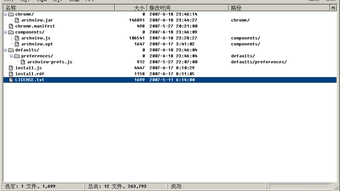
First‑run tips: Upon opening the application for the first time, you’ll see a simple toolbar with “Open Archive”, “Create Archive”, and “Settings”. Use “Open Archive” to browse to a compressed file; ArchiveView will display its contents in a split‑pane view, allowing you to preview files or extract selected items. The “Settings” panel lets you toggle the default extraction folder, enable automatic checksum verification, and adjust context‑menu behavior. Because the tool integrates directly with Windows Explorer, you can also test the right‑click options on any folder or file to ensure they appear as expected.
Frequently Asked Questions
Is ArchiveView truly free or does it contain hidden fees?
ArchiveView is 100 % free. Solar Flare does not require registration, a subscription, or any in‑app purchases. All core features are available without cost.
Can ArchiveView handle password‑protected archives?
Yes, ArchiveView can open password‑protected ZIP and RAR files. When you attempt to extract a secured archive, a prompt will appear asking for the password. However, the tool does not provide a password‑recovery feature.
Does ArchiveView support drag‑and‑drop from the desktop?
Absolutely. You can drag any supported archive file onto the ArchiveView window to instantly view its contents, or drop files/folders onto the “Create Archive” button to compress them.
Will ArchiveView work on macOS or Linux?
No. ArchiveView is a Windows‑only application. Users on macOS or Linux will need to look for alternative tools such as The Unarchiver (macOS) or PeaZip (cross‑platform).
How often are updates released and are they automatic?
Solar Flare releases a minor update roughly every 2–3 months, focusing on security patches and format compatibility. The application includes an optional auto‑update checker that notifies you when a new version is available.
Conclusion & Call to Action
ArchiveView fills a niche that many Windows power users overlook: a no‑frills, free utility that manages the most common archive formats without demanding a subscription or bloated feature set. Its deep integration with Windows Explorer, lightweight footprint, and regular security updates make it a trustworthy addition to any PC toolbox. While it lacks advanced features like encryption, cloud sync, or extensive batch processing, those omissions are intentional to keep the app fast and simple. If you regularly compress, extract, or preview files and want a tool that “just works,” ArchiveView is a solid choice. Download it today from Solar Flare’s official site, install in minutes, and start streamlining your file‑handling workflow instantly.
Click here to download ArchiveView for free and experience a smoother, more efficient archive management experience on Windows.







